SwetyEditor › Multicam
Multicam: cut between cameras by who is speaking, in Premiere Pro
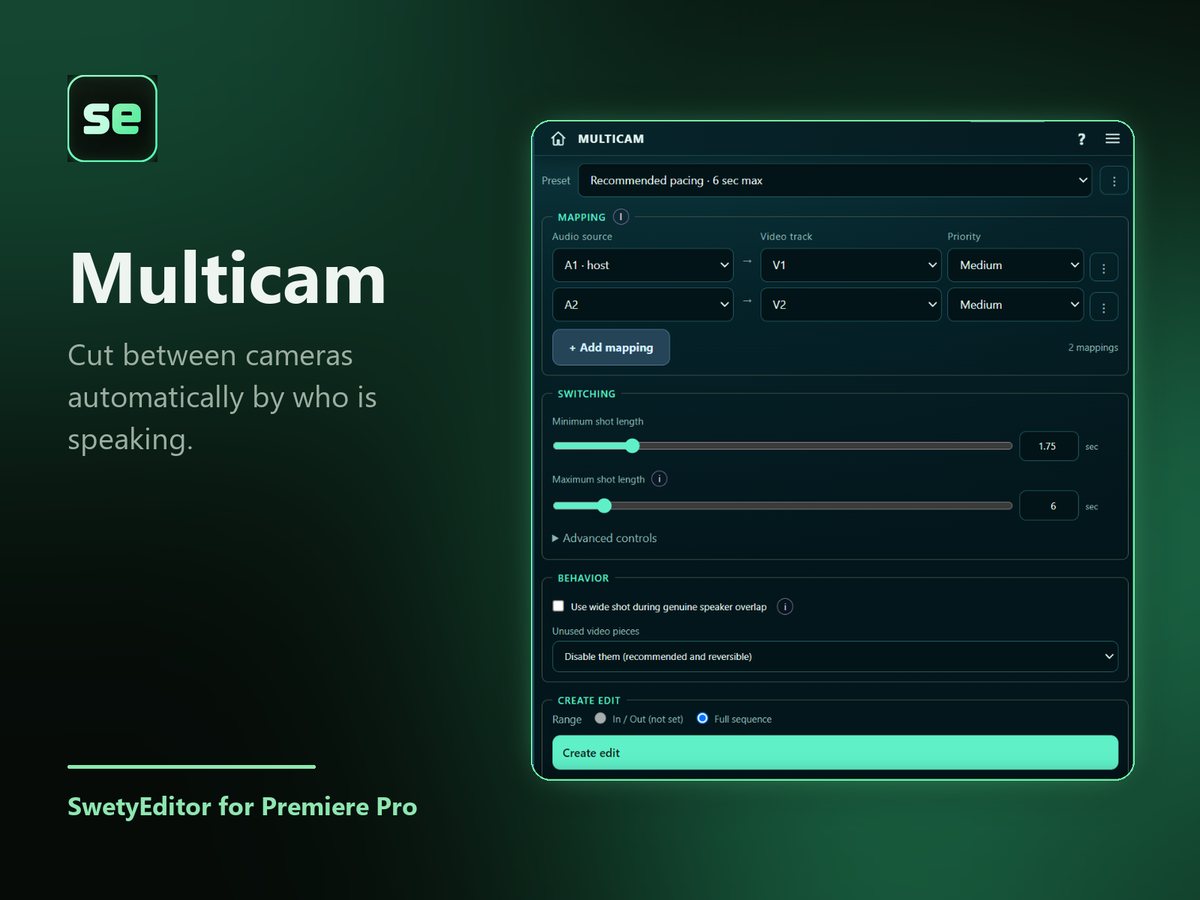
For podcasts and interviews with a camera on each person. Multicam listens to each person's audio and cuts to their camera when they talk. If everyone was recorded onto one mixed track, Split speakers separates the voices first.
What’s inside
Multicam editingMap each audio source to the video track it should cut to, then press Create edit. Use a wide shot for when everyone talks.
Split speakersStarts from one mixed audio track and Premiere's own transcript. Each speaker's audio moves to its own track, ready for Multicam or for mixing.
How it works
- Map each audio source to a video track (one row each).
- Try a short range first, such as one minute with In and Out.
- Press Create edit. A backup is made first.
Good to know
- Do not use Premiere while it runs: editing, switching sequences or changing mute and Solo during the analysis can affect the result.
- For long podcasts work in sections of about 20 minutes, because longer selections get much slower.
- Split speakers relies on Premiere's speaker labels, which are not always right. You can listen to each speaker and rename or merge them before you split.