SwetyEditor › Multicam › Split speakers
Split speakers onto separate audio tracks in Premiere Pro
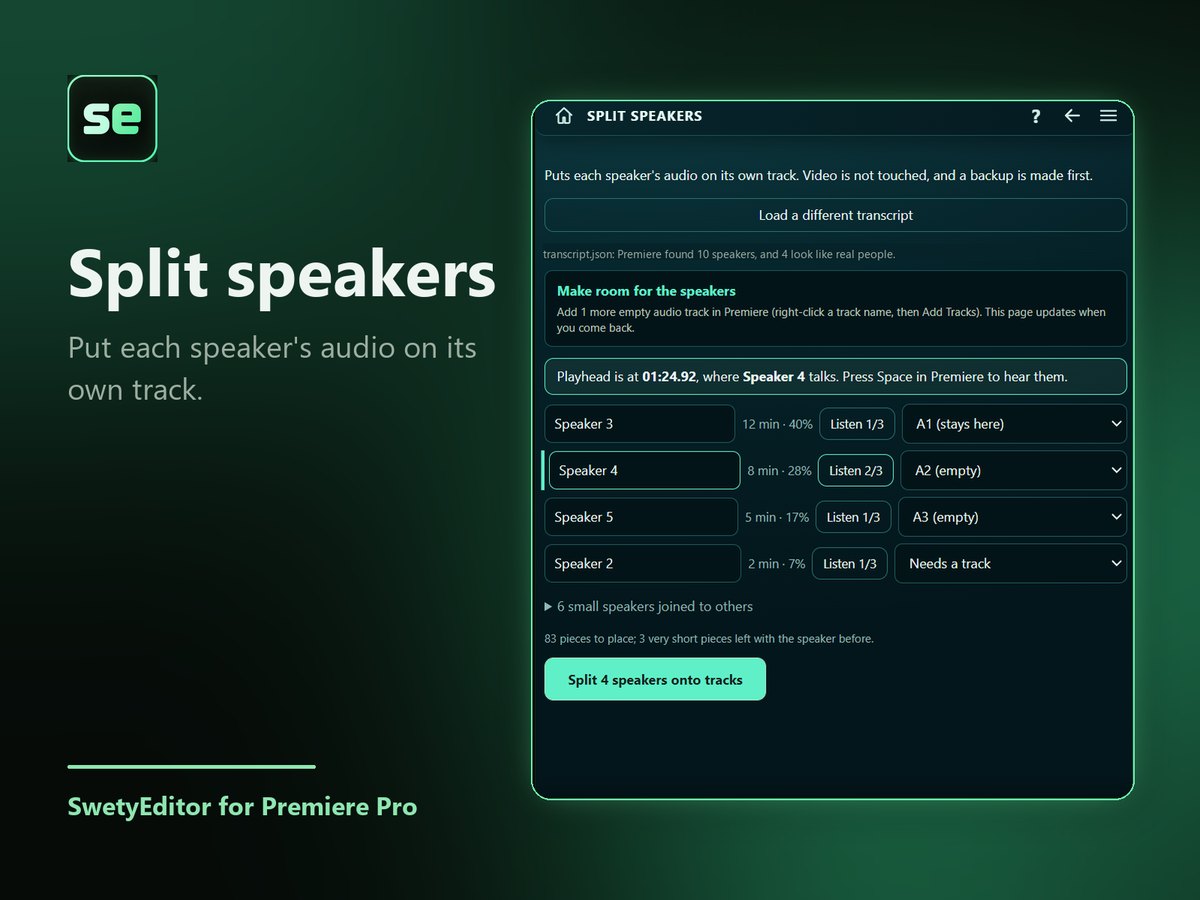
If a recording has several people on one audio track, Split speakers cuts the audio where the speaker changes and moves each person's pieces onto their own track. It's included with the Multicam tool.
What’s inside
It uses Premiere's own transcriptTranscribe in Premiere's Text panel with speaker detection on, export the transcript as JSON and load it into the tool. Nothing is uploaded.
Listen before you splitPremiere often finds more speakers than there are people. Press Listen on a speaker, hear them in Premiere, rename them, and choose where each one goes. Small speakers are joined to others by default.
It tells you how many tracks to addPremiere will not add audio tracks from a script, so the panel counts how many empty tracks you need and updates when you come back from adding them.
Your original stays safeThe sequence is backed up first, and only audio moves. Video stays where it is.
How it works
- Transcribe with speaker detection in Premiere, then export the transcript as JSON and load it.
- Add the empty audio tracks the panel asks for, listen to each speaker and choose where they go.
- Press Split.
Good to know
- Premiere's speaker labels are not always right, so listen first. Two people talking over each other go to whoever speaks second.
- A pause stays with the speaker before it, and a piece shorter than half a second joins the speaker before it, so you do not get tiny clips.
- Tested so far on recordings with up to four speakers and one mixed track.